• Toggle Accessibility Statement
  • Home
  • Skip to Main Content
  • Sitemap
Menu
GOVPH
  • Home
  • About
    • About Us
    • Contact Us
    • Our Logo
    • Our Schools
      • Our School Heads
    • Organizational Chart
    • Vision, Mission, Core Values and Mandate
    • Citizen’s Charter
    • Privacy Policy
  • Resources
    • Issuances
      • Division Memorandum
        • Curriculum Implementation Division (CID)
        • School Governance and Operations Division (SGOD)
        • Office of the Schools Division Superintendent (OSDS)
      • Division Advisory
    • Downloads
  • Procurement
  • Publications
    • Financial Reports
      • Financial Statements
      • FAR 4
      • FAR 5
      • Monthly Trial Balance
      • Bank Reconciliation
        • Regular Fund
        • Provident Fund
        • Trust Fund
      • BFAR
    • The Shield
    • Special Education Fund (SEF)
  • Careers
  • Services
    • Enterprise Management System
    • Document Tracking System
    • CSDT Network Attached Storage
    • Rate our services!
    • ICT Services
  • AUXILIARY MENU
  • Careers – Apply Here!
  • Enterprise Management System
  • Document Tracking System
  • Quality Management System
  • Calendar of Activities
  • GOVPH
  • Home
  • About
    • About Us
    • Contact Us
    • Our Logo
    • Our Schools
      • Our School Heads
    • Organizational Chart
    • Vision, Mission, Core Values and Mandate
    • Citizen’s Charter
    • Privacy Policy
  • Resources
    • Issuances
      • Division Memorandum
        • Curriculum Implementation Division (CID)
        • School Governance and Operations Division (SGOD)
        • Office of the Schools Division Superintendent (OSDS)
      • Division Advisory
    • Downloads
  • Procurement
  • Publications
    • Financial Reports
      • Financial Statements
      • FAR 4
      • FAR 5
      • Monthly Trial Balance
      • Bank Reconciliation
        • Regular Fund
        • Provident Fund
        • Trust Fund
      • BFAR
    • The Shield
    • Special Education Fund (SEF)
  • Careers
  • Services
    • Enterprise Management System
    • Document Tracking System
    • CSDT Network Attached Storage
    • Rate our services!
    • ICT Services
    • Accessibility Statement
    • High Contrast
    • Skip to Content
    • Skip to Footer

Philippine Standard Time:

πŸ“§ How to Request a Microsoft 365 Account via EMS

  • Careers – Apply Here!
  • Enterprise Management System
  • Document Tracking System
  • Quality Management System
  • Calendar of Activities
  • You are here:
  • Home β€Ί
  • Account Management
  • ICT Services β€Ί
  • πŸ“§ How to Request a Microsoft 365 Account via EMS
Posted on 18th June 2026

Estimated Time: 3–5 Minutes
Service Category: ICT Services
Who Can Apply: Teaching and Non-Teaching Personnel


🎯 What is this Service?

This service allows personnel to request to Microsoft 365 services, including:

βœ… Outlook Email
βœ… Microsoft Teams
βœ… OneDrive Cloud Storage
βœ… Word Online
βœ… Excel Online
βœ… PowerPoint Online


πŸ“‹ Before You Begin

Please prepare the following information:

RequirementDescription
EMS Account (DepEd Email)with the deped.gov.ph domain
i.e. juan.delacruz@deped.gov.ph
EMS Passwordas provided by ICTU

πŸš€ Step-by-Step Procedure

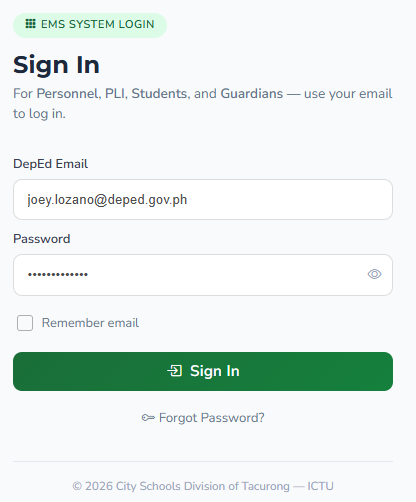
Step 1: Log in to EMS (ems.depedtacurong.org) or click HERE.

Open the EMS Portal and sign in using your account credentials.

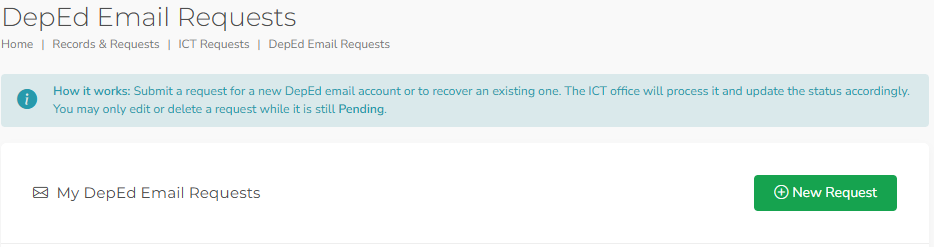
Step 2: Open DepEd Email Requests

From the EMS Dashboard, click:

Services β†’ Records and Requests β†’ ICT Requests β†’ DepEd Email Requests


Step 3: Select “New Request” button.

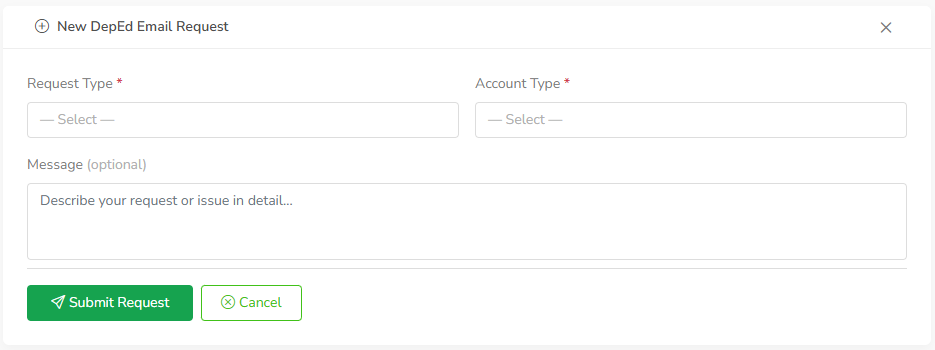
Step 4: Complete the Request Form

Fill in all required fields.

⚠️ Important

Ensure that:

  • Request Type: (New Account if there is no existing account or Recover Account is there is an existing account)
  • Account Type: Microsoft (M365) Account
  • Message (optional).

Step 5: Submit the Request

Click the Submit Request button.

πŸŽ‰ A reference number will be generated after successful submission.


Step 6: Track Your Request

To monitor your application:

EMS β†’ My Requests

You will see the current status of your request.

StatusMeaning
PendingWaiting for verification
ProcessingCurrently being reviewed
CompletedRequest has been completed
RejectedRequest cannot be fulfilled

πŸ’‘ Tips

βœ” Regularly check your request status in EMS.


❓ Frequently Asked Questions

How long does processing take?

Most requests are processed within a few working days, depending on verification requirements.

How will I receive my account credentials?

Instructions and account details will be sent through the contact information provided in your request.

What if my request is returned?

Review the remarks provided by the ICT Unit, update the necessary information, and resubmit your request.

Can I track my application?

Yes. All requests can be monitored through the My Requests page in EMS.


πŸ“ž Need Help?

If you encounter issues while submitting your request, contact the ICT Unit through the official support channels of the Division Office.

transparency seal logo